FI Annuity Order Analytics
Filters
Filtering the Dashboard
Agency Performance
Overview
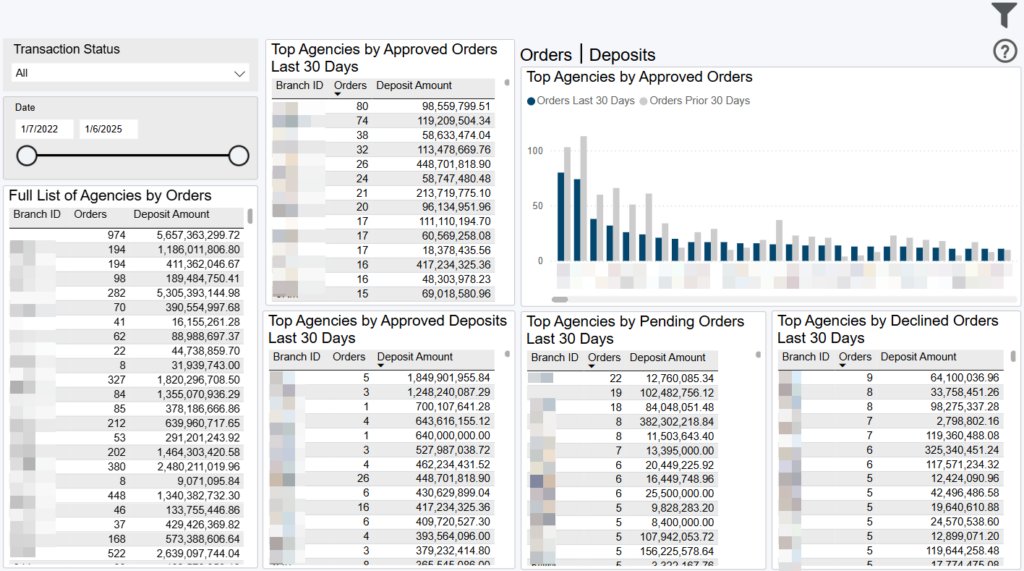
This dashboard displays key performance indicators across your agencies, or branch IDs. The table to the left displays totals for the last 30 days and all transaction statuses. To adjust the time period or refine by transaction status(s), choose from the two filters present at the top of the table.
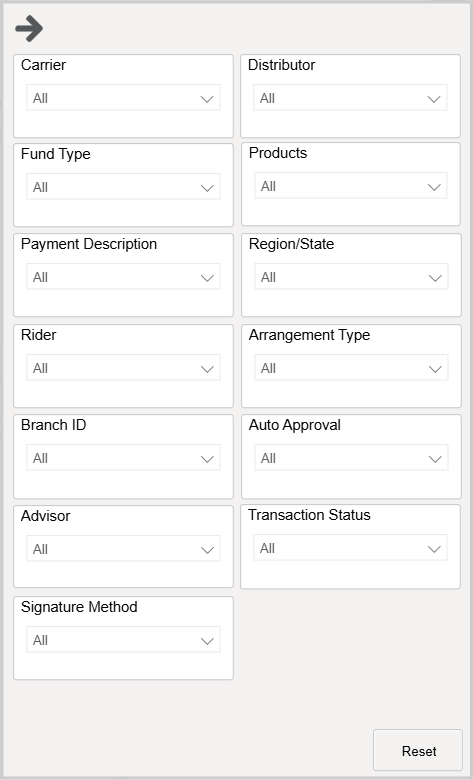
The global filters found by clicking the Filter icon in the top right also affect this table, as well as all other visualizations on this dashboard. Right click any visual and select the “Drill through” option to see the underlying order details.
Data Definitions
- Approved Order = an order in one of the following transaction statuses:
- Processed Successfully (3)
- Pending Transmission (6)
- Sent (7)
- Completed (29)
- Complete – Paper Submission/Non-DTCC (60)
- Declined Order = an order in one of the following transaction statuses:
- Rejected (53)
- Replaced (54)
- Transaction Cancelled (64)
- Pending Order = an order in one of the following transaction statuses:
- Pending Review (20)
Exporting Data
Click the “Quick Actions” dropdown in the top right of your screen to send this information to your email. Choosing “Export” will immediately send an email with a file attachment. This email is tied to your InsureSight username.
Choosing “Schedule” will allow you to set up a recurring email to be delivered on the schedule you choose. To modify this schedule, click the “Settings” option in the far-left navigation menu under “InsureSight.”
Executive Dashboard

Overview
This dashboard displays key performance indicators across your business. By default, all visual display totals for the last 30 days and compares performance to the 30 days prior.
The “last 30 days” is considered the last 30 calendar days (on a rolling basis). The “30 days before” is considered the 30 days prior to the last 30 calendar day period (on a rolling basis).
Right click any visual and select the “Drill through” option to see the underlying order details.
Data Definitions
- New Advisor = advisors (rep IDs) who submitted at least 1 order in the last 30 days but not before that.
- Repeat Advisor = advisors (rep IDs) who submitted at least 1 order in the last 30 days and submitted at least 1 order the 30 days before that.
- Returning Advisor = advisors (rep IDs) who submitted at least 1 order in the last 30 days, but not in the last 30-60 days, and submitted at least 1 order prior to 60 days ago.
- Approved Order = an order in one of the following transaction statuses:
- Processed Successfully (3)
- Pending Transmission (6)
- Sent (7)
- Completed (29)
- Complete – Paper Submission/Non-DTCC (60)
- Declined Order = an order in one of the following transaction statuses:
- Rejected (53)
- Replaced (54)
- Transaction Cancelled (64)
- Pending Order = an order in one of the following transaction statuses:
- Pending Review (20)
- Forms Rendered Order = an order in one of the following transaction statuses:
- Forms Rendered (23)
Exporting Data
Click the “Quick Actions” dropdown in the top right of your screen to send this information to your email. Choosing “Export” will immediately send an email with a file attachment. This email is tied to your InsureSight username.
Choosing “Schedule” will allow you to set up a recurring email to be delivered on the schedule you choose. To modify this schedule, click the “Settings” option in the far-left navigation menu under “InsureSight.”
High Level Performance
Overview
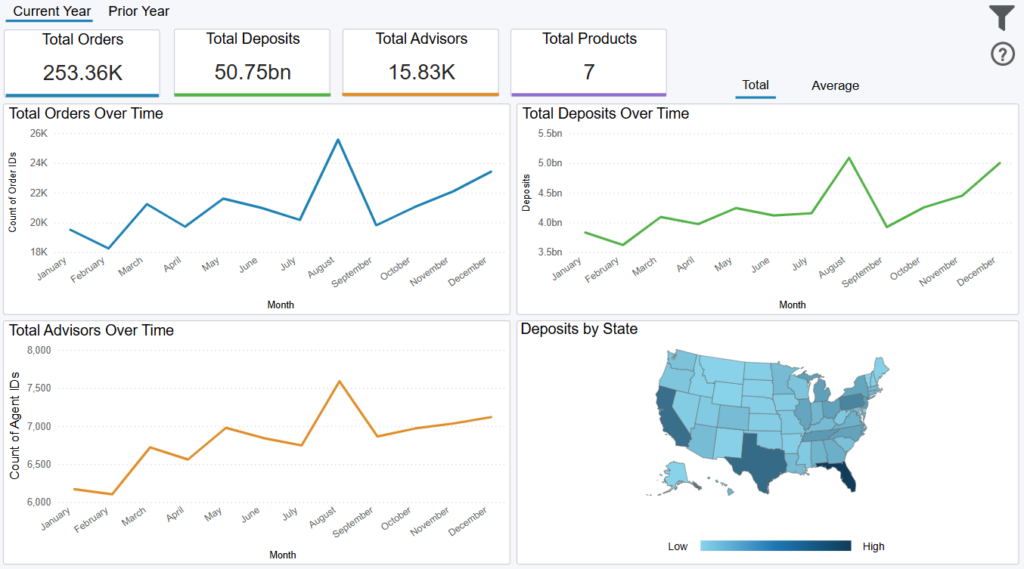
This dashboard displays information on your orders, including orders by fund type, transaction status, and which percentage of orders have riders and arrangements.
Choose the “Prior Year” option to compare the analytics to the same period the previous year. Hover over the charts and click the drill-down and drill-up arrows to change the period displayed on the line graphs.
Choose the Filter icon in the top right to filter the dashboard data by date, carrier, state, and more. Right click any visual and select the “Drill through” option to see the underlying order details.
Exporting Data
Click the “Quick Actions” dropdown in the top right of your screen to send this information to your email. Choosing “Export” will immediately send an email with a file attachment. This email is tied to your InsureSight username.
Choosing “Schedule” will allow you to set up a recurring email to be delivered on the schedule you choose. To modify this schedule, click the “Settings” option in the far-left navigation menu under “InsureSight.”
Order Summary

Overview
This dashboard displays information on your orders, including orders by fund type, transaction status, and which percentage of orders have riders and arrangements.
Choose the “Prior Year” option to compare the analytics to the same period the previous year.
Choose the Filter icon in the top right to filter the dashboard data by date, carrier, state, and more. Right click any visual and select the “Drill through” option to see the underlying order details.
Exporting Data
Click the “Quick Actions” dropdown in the top right of your screen to send this information to your email. Choosing “Export” will immediately send an email with a file attachment. This email is tied to your InsureSight username.
Choosing “Schedule” will allow you to set up a recurring email to be delivered on the schedule you choose. To modify this schedule, click the “Settings” option in the far-left navigation menu under “InsureSight.”
Orders by Status
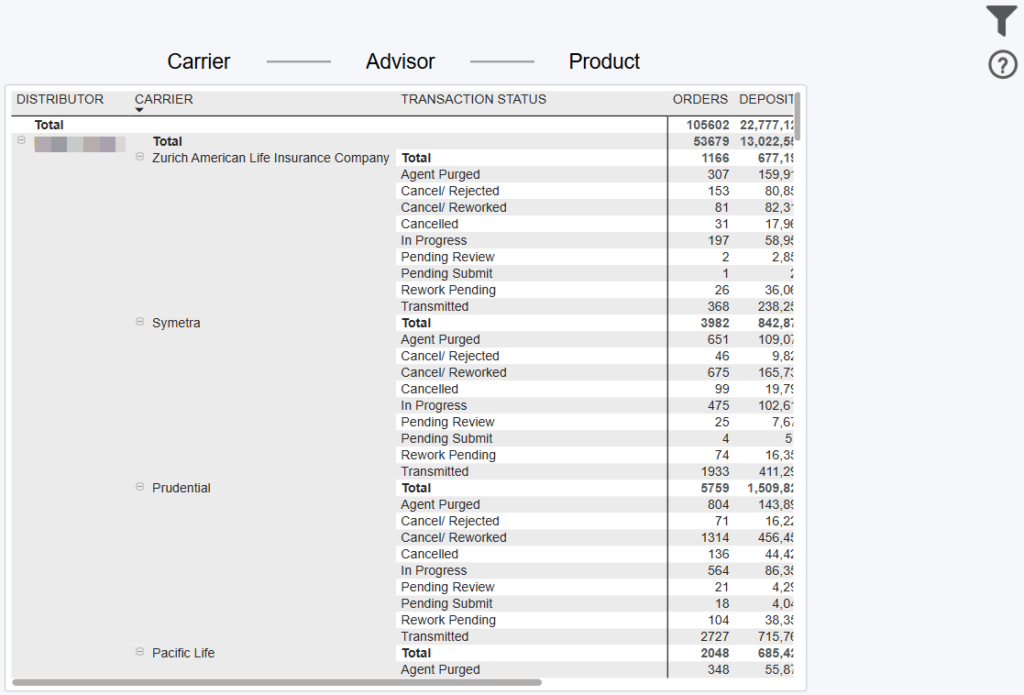
Overview
The dashboard displays orders by either carrier, advisor, or product, for all pre-submitted orders. Click the options at the top of the screen to navigate among these different reports.
Choose the Filter icon in the top right to refine this report. The date filter corresponds to the execution date (i.e. “start date”) of the order. Right click any order count and select the “Drill through” option to see the underlying order details.
Exporting Data
Click the “Quick Actions” dropdown in the top right of your screen to send this information to your email. Choosing “Export” will immediately send an email with a file attachment. This email is tied to your InsureSight username.
Choosing “Schedule” will allow you to set up a recurring email to be delivered on the schedule you choose. To modify this schedule, click the “Settings” option in the far-left navigation menu under “InsureSight.”
Order Detail Report
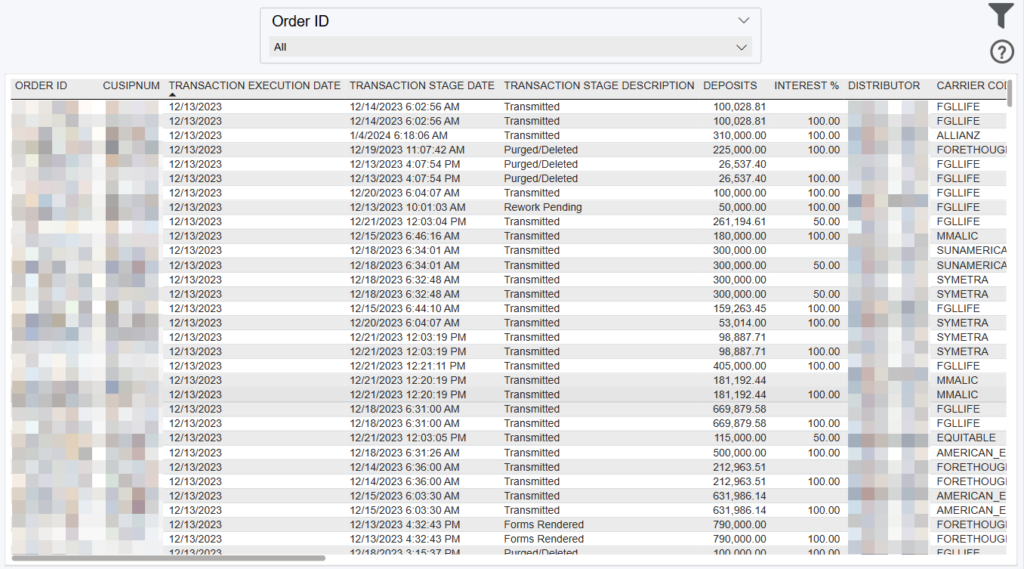
Overview
The dashboard displays a detailed view of all orders.
Choose the Filter icon in the top right to refine this report. The date filter corresponds to the execution date of the order. Right click any order and select the “Drill through” option to see the underlying order details.
Exporting Data
Click the “Quick Actions” dropdown in the top right of your screen to send this information to your email. Choosing “Export” will immediately send an email with a file attachment. This email is tied to your InsureSight username.
Choosing “Schedule” will allow you to set up a recurring email to be delivered on the schedule you choose. To modify this schedule, click the “Settings” option in the far-left navigation menu under “InsureSight.”
Order Status Details