
How to add Laserapp in Norton whitelist
Add Laser App Enterprise to the exceptions of Norton
add Laser App Enterprise to the exceptions of Norton to allow Laser App Enterprise to run properly on the user’s PC.
Overview
Norton, also known as Norton by Symantec, is a division of Symantec, and is based out of Mountain View, California. Since being acquired by the Symantec Corporation in 1990, Norton has offered a variety of products and services related to digital security. Norton can cause Laser App Enterprise not to run correctly on the user’s PC. Some issues that have been know to cause problems with Laser App are, forms being removed, form categories not showing up in the Filter Business Channel under Form Search & Management. In addition, it can block Laser App from checking updates to forms or not allow updates to be executed in the program.
Here are the following steps to add Laser App Enterprise to the exceptions of Norton to allow Laser App Enterprise to run properly on the user’s PC.
3 Part Phase of Adding Laser App Enterprise to Exceptions of Norton
- Part 1 – Adding Laser App Enterprise to Exceptions in the Antivirus Section Under Settings
Open in the Norton program and click on the Settings option in the top right hand corner. 
In the Settings window, click on the Antivirus option.

In the Antivirus window, click on Scans and Risks option.

Under Scans and Risks, go to Exclusions / Low Risks, and then to Items to Exclude from Scans and click on Configure [+]. 
In the Scans Exclusions window, click on the Add Folders button. 
In the Add Item window, make sure the check box is checked in the section called Include subfolders and then click on the icon on the right that shows a open folder on

In the Browse for Folder window, Look for the Laser App Enterprise program folder, the directory to get to this folder is by going to C:\Program Files (x86)\Laser App Enterprise.
Once the folder is found, left click it to highlight the folder and then click on the OK button.

Back in the Add Item window, click the OK button.

Then back in the Scan Exclusions window, click Apply then click the OK button. 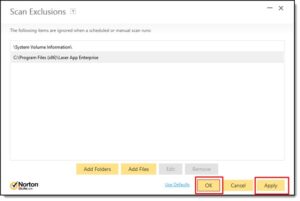
In the Settings window, go to Scans and Risks Category on top and go to the section called Exclusions / Low Risks, then go to the one that says, Items to Exclude from Auto-Protect, SONAR and Download Intelligence Detection, and click on the option on the right that says, Configure [+]. 
In Real Time Exclusions, click on the Add Folders button.

In the Add Item window, click on the open folder icon on the right hand side. 
In the Browser for Folder window, look for the Laser App Enterprise program folder in the C:\ drive. The directory should be this. C:\Program Files (x86)\Laser App Enterprise. on
The folder is found left click on it once to highlight it and then click on the OK button below.
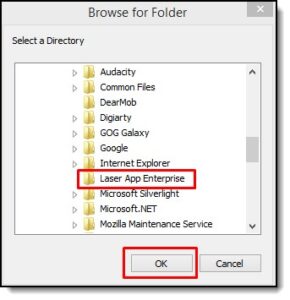
Back in the Add Item window, click on the OK button.

Then back in the Real Time Exclusions, click Apply then click the OK button.

Back in the Scans and Risks Settings window, click on the Close button below.

- Part 2 – Adding Laser App Enterprise to Exceptions of Norton’s Firewall Section Under Settings
In the main screen of Norton, click on the option on top that says, Settings.
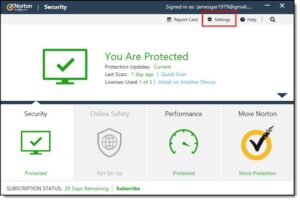
In the Settings window, click on the option below that says, Firewall.

In the Firewall Settings window, click on the option on top that says, Program Control.

In the Program Control window, look through the list of programs that Norton has detected on the PC and find anything that has Laser App Enterprise on it. Once found, make sure under the Access section, that it is set to Allow. Then click the Apply button and then the Close button after that.

- Part 3 – Adding Laser App Enterprise to Exceptions Under the Administrative Settings Section Under Settings.
In the main screen of Norton, click on the option on top that says, Settings.

In the Settings window, click on the option below that says, Administrative Settings. 
In the Administrative Settings window, go to a section below called Performance Monitoring and then go to the option that says, Program Exclusions and click on Configure[+]. 
In the Program Exclusionswindow, click on the Add
In the Browse for Files or Folderswindow, look for the Laser App Enterprise executable called exe. This application should located by going to this directory: C:\Program Files (x86)\Laser App Enterprise\elas. Once the file is found, left click it once to highlight it and then click on the OK button once done.
Back in theProgram Exclusions window, click the Apply button and then click on the OK button after that.
Back in the Administrative Settings, go to the section below called Silent Mode Settings and then to the option that says, User-Specified Programsand click on Configure [+].
In the Quiet Mode Programswindow, click on the Add
In the Browse for Files or Folderswindow, look for the Laser App Enterprise executable called exe. This application should located by going to this directory: C:\Program Files (x86)\Laser App Enterprise\elas. Once the file is found, left click it once to highlight it and then click on the OK button once done.
Back in the Quiet Mode Programs window, click the Apply button and then click on the OK button after that.

Back in the Administrative Settings window, click on the Close button below.
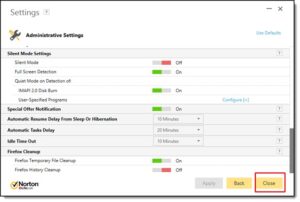
And back in the Main Norton window, click on the “X” symbol on the top right hand side to close out of Norton itself.
