
Carrier eDelivery Analytics
Overview
The following dashboards allow you to
- Evaluate your completed deliveries to see what factors led to success
- Improve the delivery of policies by analyzing declined policies by status, agency, agent and product for follow up actions
Filters

Filtering the Dashboard
Complete & Not Taken Policies
Overview
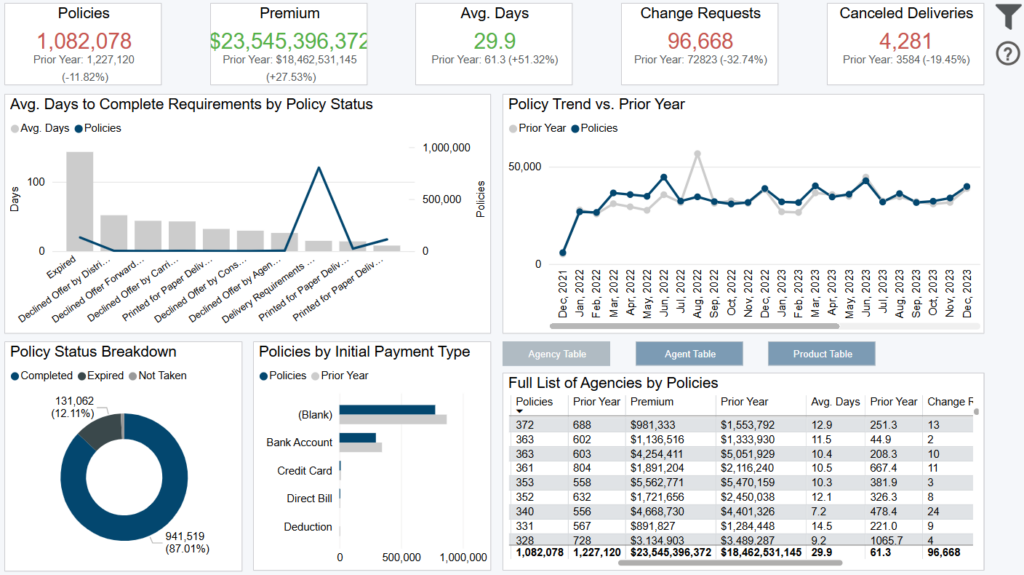
This dashboard displays your completed, not taken, deleted, and expired policy trends broken out by agency, agent, and product.
Avg Days to Complete Requirements by Policy Status
The chart displays average days a policy takes to reach a ‘final’ policy status correlated with the number of policies. Right click to drill into detail.
Full List Tables
Click buttons on top to switch view by agency, agent, or product. Each table displays number of policies, annualized premium, average days, change requests, and canceled deliveries with prior year comparisons. Right click to drill into detail.
Exporting Data
Click the “Quick Actions” dropdown in the top right of your screen to send this information to your email. Choosing “Export” will immediately send an email with a file attachment. This email is tied to your InsureSight username.
Choosing “Schedule” will allow you to set up a recurring email to be delivered on the schedule you choose. To modify this schedule, click the “Settings” option in the far-left navigation menu under “InsureSight.”
Outstanding Policies

Overview
This dashboard displays your outstanding policy trends broken out by agency, agent, and product. Note: there are no prior year comparisons on
this dashboard, only showing outstanding activity.
Avg Days Outstanding by Policy Status
The chart displays average days a policy has been outstanding by current policy status correlated with the number of policies. Right click to drill into detail.
Outstanding Policies by Premium vs. Days Outstanding
The scatter plot displays policies relative to annualized premium and days outstanding. Each dot represents a single policy. Hover on a dot to see policy number, days outstanding, annualized premium, and current policy status. Right click on a dot to drill into detail.
Goal is to target policies that have been outstanding the longest with the highest annualized premium potential (far right quadrant). Change filter range for premium and days open to get a more granular analysis.
Full List Tables
Click buttons on top to switch view by agency, agent, or product. Each table displays number of outstanding policies, annualized premium, average days, change requests, and edits. Right click to drill into detail.
Exporting Data
Click the “Quick Actions” dropdown in the top right of your screen to send this information to your email. Choosing “Export” will immediately send an email with a file attachment. This email is tied to your InsureSight username.
Choosing “Schedule” will allow you to set up a recurring email to be delivered on the schedule you choose. To modify this schedule, click the “Settings” option in the far-left navigation menu under “InsureSight.”
Complete & Not Taken Upsells

Overview
This dashboard displays your completed, not taken, deleted, and expired upsell trends broken out by agency, agent, and product.
Upsell Premium Trend (Increase from Upsells)
The chart displays increase in annualized premium over time from upsells compared to the prior year. Right click to drill into detail.
Upsell Face Amount Trend (Increase from Upsells)
The chart displays increase in face amount over time from upsells compared to the prior year. Right click to drill into detail.
Full List Tables
Click buttons on top to switch view by agency, agent, or product. Each table displays number of upsells, eligible policies, % upsells taken, upsell annualized premium, upsell face amount, average annualized premium per upsell, and average face amount per upsell with prior year comparisons. Right click to drill into detail.
Exporting Data
Click the “Quick Actions” dropdown in the top right of your screen to send this information to your email. Choosing “Export” will immediately send an email with a file attachment. This email is tied to your InsureSight username.
Choosing “Schedule” will allow you to set up a recurring email to be delivered on the schedule you choose. To modify this schedule, click the “Settings” option in the far-left navigation menu under “InsureSight.”
Outstanding Upsells

Overview
This dashboard displays your outstanding upsell trends broken out by agency, agent, and product. Note: there are no prior year comparisons only showing outstanding activity.
Outstanding Upsell Premium Trend (Increase from Upsells)
The chart displays increase in annualized premium over time from upsells. Right click to drill into detail.
Outstanding Upsell Face Amount Trend (Increase from Upsells)
The chart displays increase in face amount over time from upsells. Right click to drill into detail.
Full List Tables
Click buttons on top to switch view by agency, agent, or product. Each table displays number of outstanding upsells, eligible outstanding policies, % upsells taken, upsell annualized premium, upsell face amount, average annualized premium per upsell, and average face amount per upsell. Right click to drill into detail.
Exporting Data
Click the “Quick Actions” dropdown in the top right of your screen to send this information to your email. Choosing “Export” will immediately send an email with a file attachment. This email is tied to your InsureSight username.
Choosing “Schedule” will allow you to set up a recurring email to be delivered on the schedule you choose. To modify this schedule, click the “Settings” option in the far-left navigation menu under “InsureSight.”
Standard Detail Report
Overview
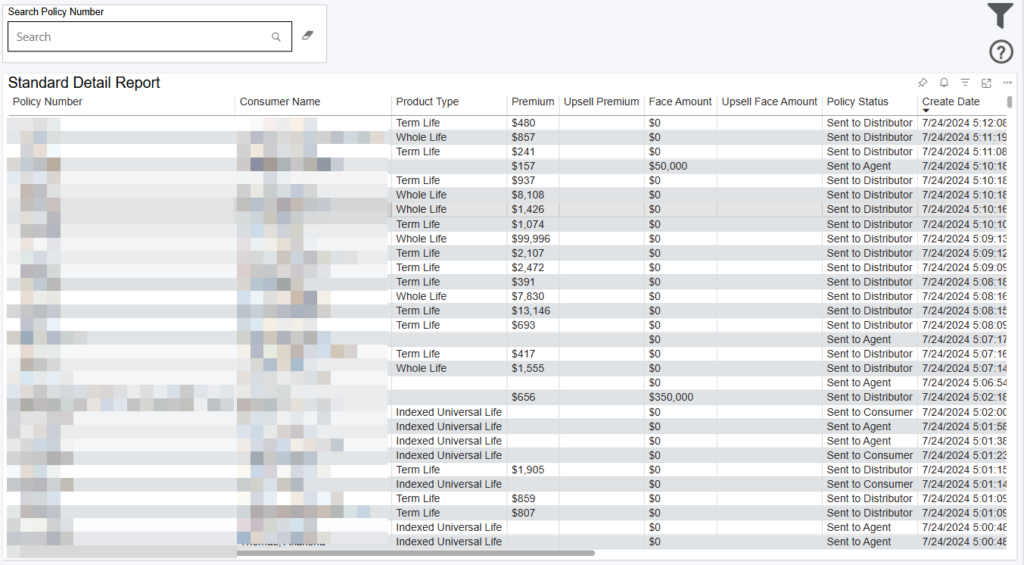
This report shows the create date, consumer name, policy number, and other various attributes for all policies.
The date filter displays all policies that had a create date.
*Note: policy must have a create date in the date filter range or it will not display on this report.
Choose the Filter icon in the top right to filter the dashboard by date, agency, product type, policy status, and more.
Exporting Data
Click the “Quick Actions” dropdown in the top right of your screen to send this information to your email. Choosing “Export” will immediately send an email with a file attachment. This email is tied to your InsureSight username.
Choosing “Schedule” will allow you to set up a recurring email to be delivered on the schedule you choose. To modify this schedule, click the “Settings” option in the far-left navigation menu under “InsureSight.”
